Server Detail Page
The Server Detail page (URL: /ui/servers/<name>) is where you inspect and
edit a single upstream server. It opens from the Servers list or via the
macOS tray's per-server submenu.
The page has these tabs: Tools, Review, Skills (only when
skills over MCP is on and the server supports it),
Logs, Configuration, and Security. The active tab is kept in
?tab= (for example ?tab=skills), so a reload or a shared link lands on the
same tab. This page covers the Skills and Configuration tabs — for the others,
see the Dashboard and Activity Log pages.
Skills tab
The Skills tab is the Web UI for reviewing skills
that an upstream server offers. It appears when enable_skills is on and the
server announces the skills extension (or already has skill records). It is
never shown to a non-administrator user of the server edition, which gets no
skills endpoint at all. A ?tab=skills link to a server where the tab is not
offered opens the Tools tab instead (and the URL says ?tab=tools).
- List. Every skill of the server with one state chip (Blocked, Unusable,
Changed, Awaiting review or Approved), whether it is offered to agents, its
file count and its scan verdict. Refresh reads the server's skills again;
the list also reloads by itself when a
skills.changedevent arrives for this server. All skills is the default for a direct tab visit. Needs review shows only Pending or Changed skills that are currently listed and unblocked, with a count matching the visible rows. Review queue Skills links open?tab=skills&state=needs-review. - Selection. On a desktop screen the selected skill's card opens beside the list, immediately in view. On a compact screen the card replaces the list; Back to skills returns to the list and restores focus to the selected row. Focus enters the detail when a skill is opened. If an action removes an open skill from Needs review, its card stays visible until Back or another selection. A normal refresh also keeps the card open.
- Files and viewer. The files of the selected skill with size and digest. A text file opens in a viewer that reads it in 64 KiB parts (Load more); once a skill has an approved copy you can switch the viewer between the current and the approved copy. A binary file is listed but never shown. Every part must be the version the list on screen names (same digest, same offset); if a part of another version comes back, the text is dropped, the viewer says "This file changed; reload to review the new version", and the list reloads.
- Changes. For a skill with an approved copy, the files are compared by path and digest (added, removed, changed, same). Show line diff compares one changed text file line by line; a file over 256 KiB on either side is not compared in the browser. A file whose approved copy is text has View approved, which opens that copy; this covers a removed file and a text file replaced by a binary file at the same path, which has no line diff.
- Scan. The verdict, whether the scan was complete and why not, and each finding with its file, position, rule, severity and excerpt.
- Approve, Block, Unblock. Approve names the content hash and the server
incarnation of the version you opened. If a reload (Refresh, or a
skills.changedevent) brings a new version of the open skill, or the server was removed and added again, the page says "This skill changed while you were reviewing it" and Approve stays off until you choose Open the new version, which starts the review over (viewer and comparison reset). If the skill changed on the server before the list showed it, nothing is approved: the list reloads and a notice says so.
Everything the upstream server wrote (names, descriptions, file names, file text, finding excerpts) is shown as plain text and is never interpreted as markup.
Configuration tab
The Configuration tab is a read-and-edit view of the server's
mcp_config.json entry. It uses dedicated cards for each block —
General, Connection, Headers, Environment Variables, Docker Isolation,
Status, Health.
This page focuses on the two cards introduced with the per-key editing feature: Headers (HTTP / streamable-http servers) and Environment Variables (stdio servers). They share an identical visual language and the same set of affordances.
Headers card

Each header row shows:
| Column | What it is |
|---|---|
| Key | The header name (e.g. Authorization) |
| Value | Either a masked literal (••••<last2> (<N> chars)), a ${keyring:NAME} chip, or a ${env:VAR} chip |
| Actions | 🔒 Convert to secret · ✎ Edit · ✕ Delete (variable set per row type) |
Value formats
- Masked literal —
••••59 (71 chars)— what you see for sensitive headers (Authorization, X-API-Key, Cookie, etc.) whenreveal_secret_headersis off (the default). The full secret is stored inmcp_config.jsonon disk; the mask is only how the API presents it. ${keyring:NAME}chip — the value is a reference to an OS keyring entry. The chip shows the keyring name so you can find the underlying secret on the Secrets page.${env:VAR}chip — similar, but resolved from the mcpproxy process's environment.- Plain string — non-sensitive headers (e.g.
X-Trace: on) show their literal value.
Add a header
Click + Add header at the top right of the card. Two inputs appear
(name + value). Hit Enter or click Add to commit. The new header is
upserted via a JSON Merge Patch and the row appears immediately.
Edit a header
Click the pencil icon next to a row. The value cell turns into a text input. Save (or Cancel) the change. The PATCH only sends this one key, so every other header stays exactly as it was — including the real plaintext behind any masked rows.
Delete a header
Click the ✕ icon and confirm. The header is deleted with a JSON Merge
Patch that sets the key to null:
PATCH /api/v1/servers/synapbus
Content-Type: application/json

{"headers": {"X-Stale": null}}
Other keys are preserved.
Convert a header value to an OS keyring secret
This is the safe way to take a Bearer token out of your config file. Click the 🔒 icon next to a literal value to open the modal:
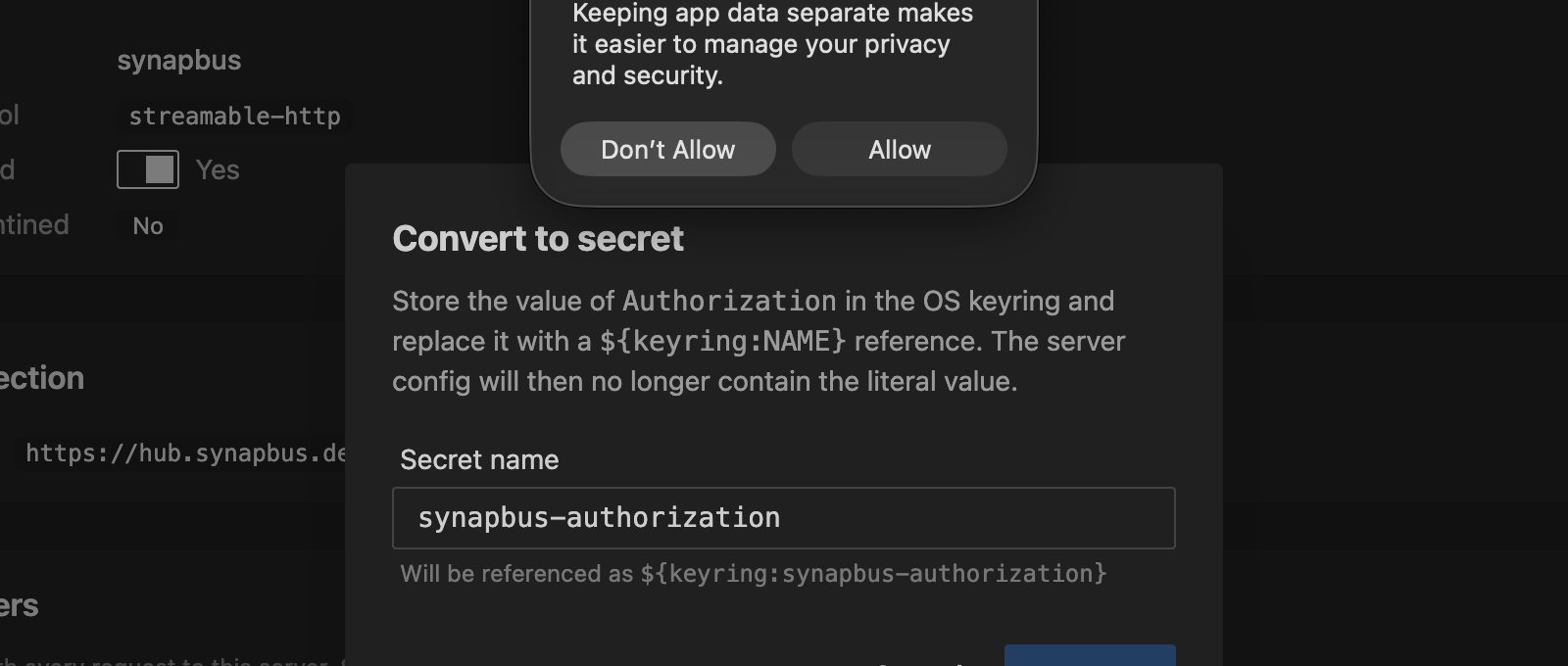
The modal asks for a secret name (pre-suggested as
<server>-<key>, all lowercase and hyphen-sanitised) and previews the
final reference. Hit Convert:
- The backend reads the real plaintext value from
mcp_config.json. - Stores it in the OS keyring under the name you chose.
- Rewrites the header field with
${keyring:<name>}.
All atomic — either the whole operation succeeds or nothing changes. The row immediately transforms from a masked literal into a keyring chip.
Why this matters: the Web UI never has to see or transmit the plaintext. The browser doesn't even need to be able to read the masked value — the backend has it. This is what makes the affordance work for sensitive headers the API redacts.
The same flow exists in the macOS tray's Edit dialog.
Environment Variables card
For stdio servers, the Environment Variables card behaves identically to Headers. Same row shape, same actions, same Convert-to-secret modal. Stdio env values aren't redacted on the wire today (only HTTP headers are) so masked rows are computed client-side, but the affordances are the same.
A common pattern is to start a stdio server with an OPENAI_API_KEY=<paste>
literal during onboarding, then click Convert to secret to move it into
keyring once you're sure the server works.
Behind the scenes
The Configuration tab is read-only against GET /api/v1/servers and
writes back via PATCH /api/v1/servers/{name}. Every per-row action is
a minimal JSON Merge Patch. The flow is documented in detail in the
REST API › PATCH section
and in Upstream Servers › Headers, Environment Variables, and Secrets.
The same operations are available from the CLI — see Management Commands › Patch Headers / Env — and from the macOS tray's Server Detail dialog.